
Docs / Face Recognition And Liveness SDK / Make API Keys
Make API Keys
Create an API key in the Face SDK dashboard for each of your systems, with only the permissions it needs and an optional expiry date.
Give every system that calls the API its own key, with only the permissions it needs. A turnstile that checks faces needs Verify; a front desk that enrols visitors needs Enrol.
- In the dashboard open API keys (admins only) and choose Add an API key.
- Name: where the key is used, such as
turnstile-gate-1. It appears in the request log and the audit log. - Allowed: tick the permissions. Admin reaches settings, keys and logs: give it only to trusted systems.
- Expires: optional. An expired key stops working on that date.
- Choose Create key and copy Your new API key. It is shown once; the server keeps only a hash.
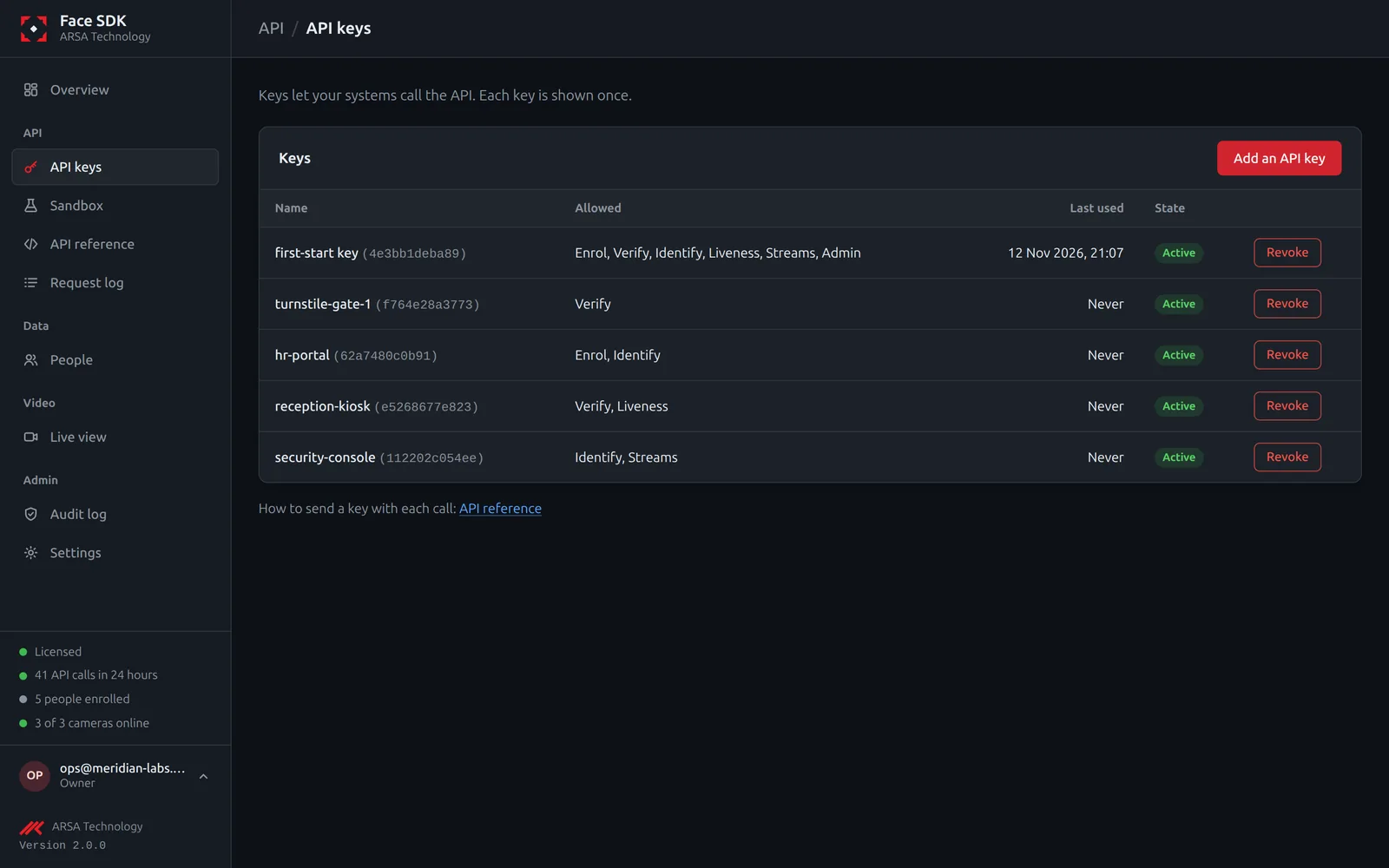
To stop a key at once, choose Revoke next to it. The Request log shows every call a key made: time, call, result and duration, never photos or request bodies.
See Authentication for the headers and the permission names in the API.
Was this page helpful?
API v2. Updated 2026-11-12