
Docs / AI Box And Video Analytics Software / Draw The Screen's Viewing Area
Draw The Screen's Viewing Area
On a DOOH Audience Meter camera, draw the area from which people can see the screen, and the detection area outside which nobody is counted.
DOOH Audience Meter counts the people who could see a screen and those who look at it. You draw where that is in step 3 of the camera flow (Add a Camera and Draw). The checklist beside the picture asks for:
- The screen’s viewing area (required): where people can see the screen.
- Detection area (optional): people outside it are not counted.
Step 1: Draw The Viewing Area
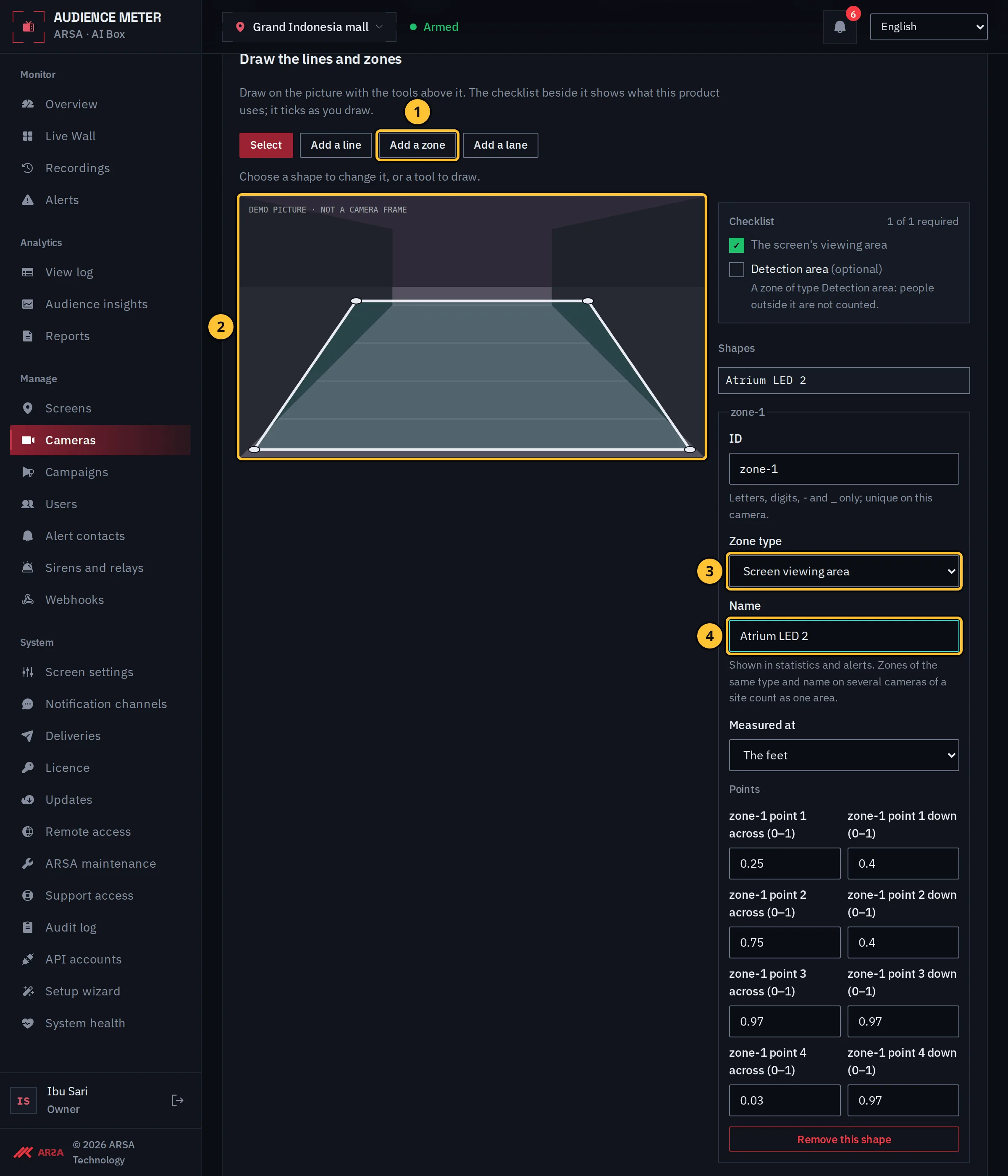
- Select Add a zone.
- Click the corners of the floor from which the screen can be seen, usually wider further from the screen, then select Finish the shape.
- Set the zone type to Screen viewing area.
- Give it the screen’s name, for example “Atrium LED 2”. The overview and reports use it.
Step 2: Draw The Detection Area
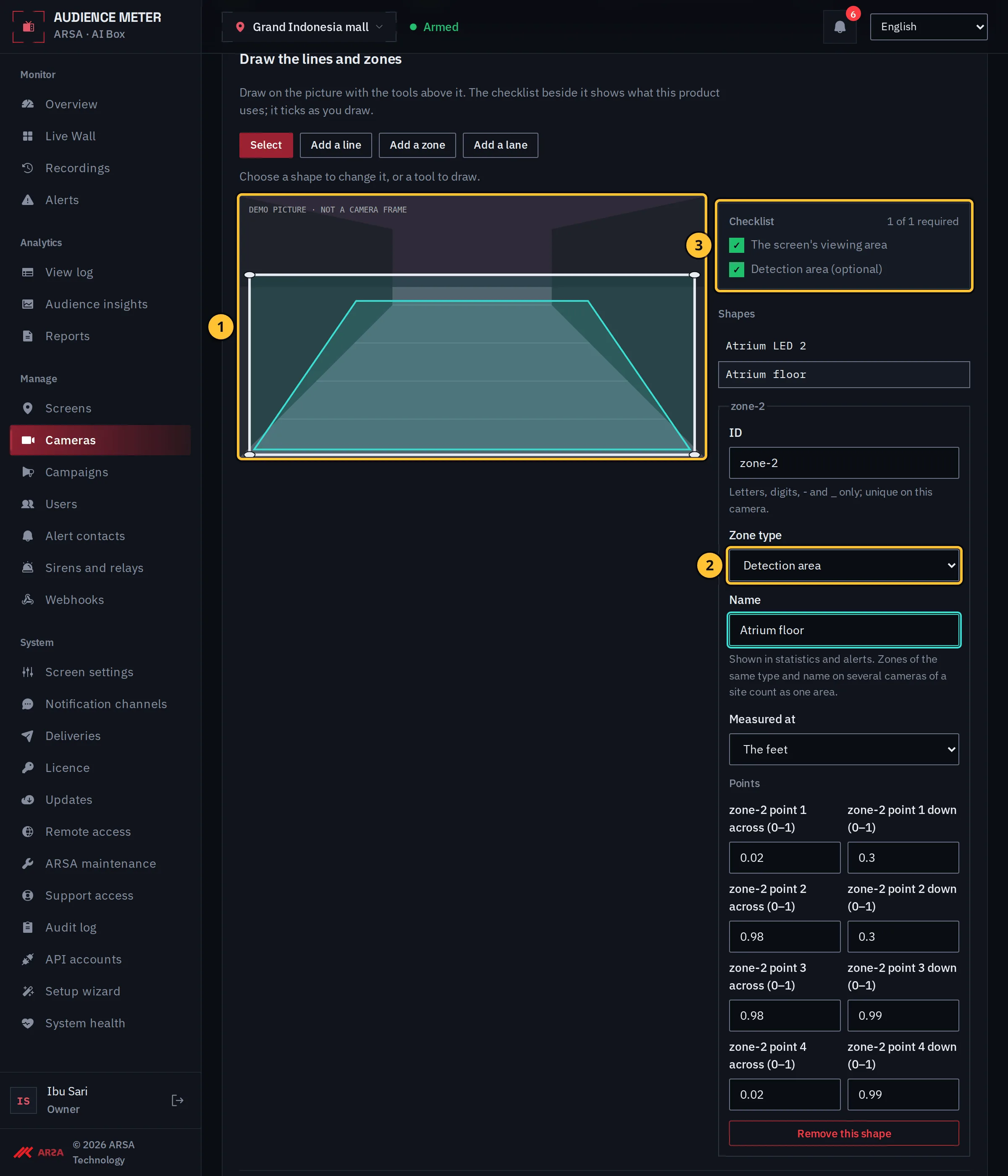
- Draw a zone around the part of the picture where people should be counted at all, for example the floor without a passage behind a glass wall.
- Set its zone type to Detection area.
- The checklist ticks both items.
Step 3: Review And Save
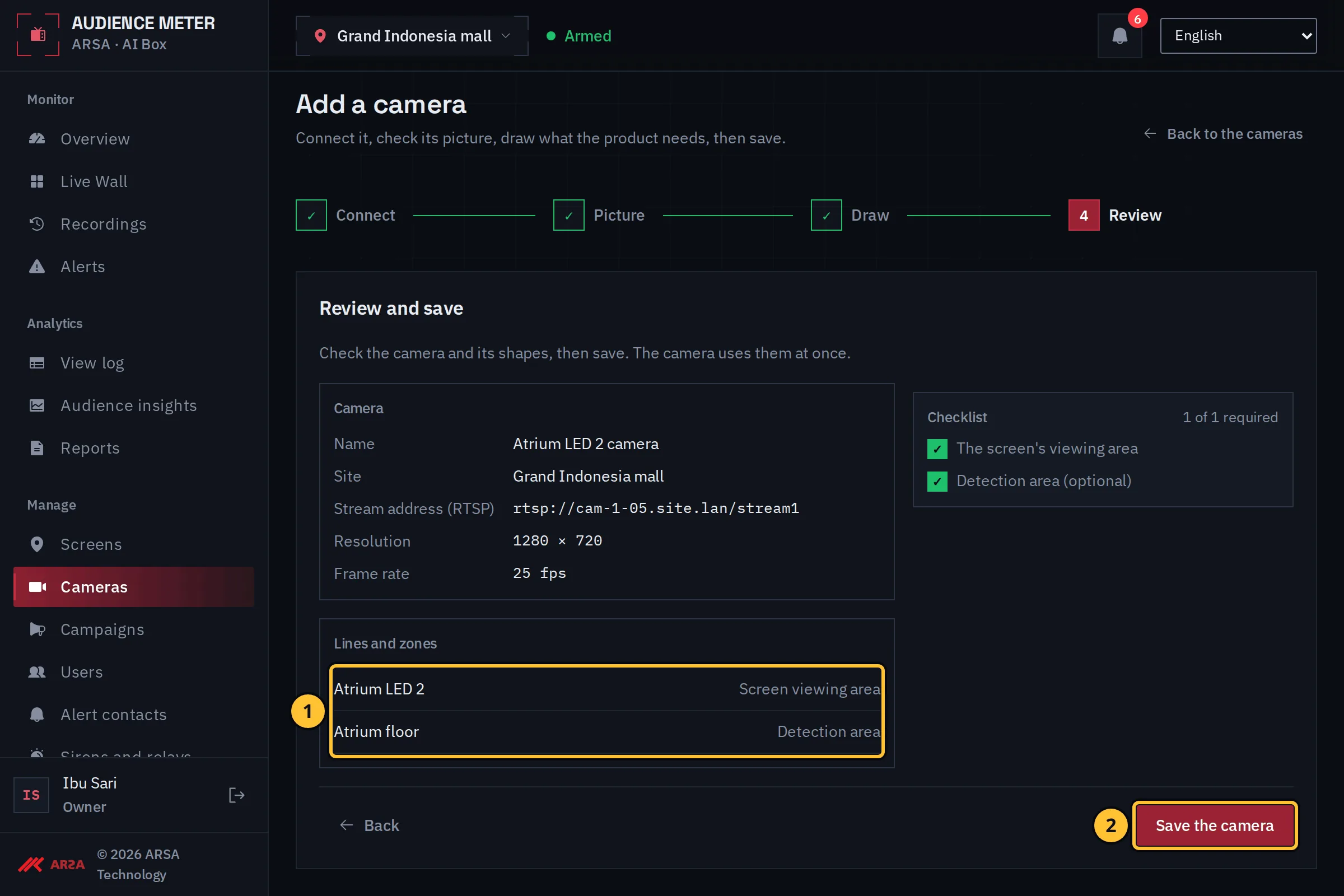
- The shapes: the viewing area and the detection area.
- Select Save the camera.
Watch The Drawing
Transcript of the drawing clip
Transcript of the clip “Draw the Screen’s Viewing Area” (silent, about 20 seconds, demo data).
- On the drawing step of a new camera the installer selects Add a zone and clicks four corners around the floor in front of the screen, wider further away, then selects Finish the shape.
- The zone gets the type Screen viewing area and the name “Atrium LED 2”.
- A second zone around the whole floor gets the type Detection area and the name “Atrium floor”.
- The checklist shows both items ticked. The review lists the two zones; the installer selects Save the camera.
Was this page helpful?
1.0.0. Updated 2026-11-06