
Docs / AI Box And Video Analytics Software / Draw The PPE Area And Hazard Areas
Draw The PPE Area And Hazard Areas
On a Basic Safety Guard camera, draw the PPE area where workers are checked and the hazard areas nobody may enter, or only authorised workers.
Basic Safety Guard checks PPE only inside a camera’s PPE area, and raises an alert when someone enters a hazard area. You draw both in step 3 of the camera flow (Add a Camera and Draw). The checklist beside the picture asks for:
- The PPE area (required): outside it nobody is checked.
- Hazard areas (optional): areas where nobody may enter, or only authorised workers.
Step 1: Draw The PPE Area
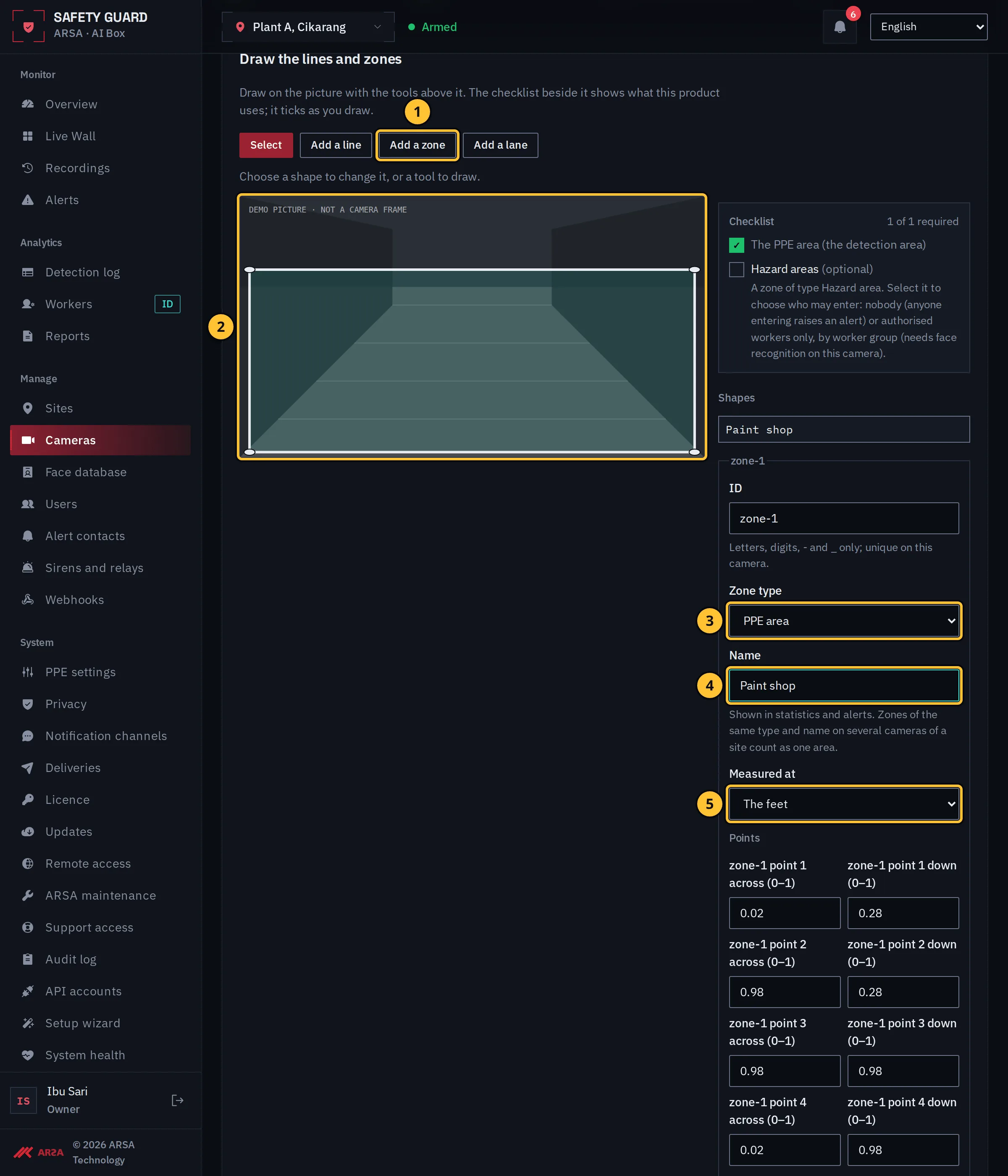
- Select Add a zone.
- Click the corners of the area on the picture, around the floor where people work, then select Finish the shape.
- Set the zone type to PPE area.
- Give it a name, for example “Paint shop”. Statistics and alerts use it. Zones of the same type and name on several cameras of a site count as one area.
- Choose where a person is measured: The feet when people are seen whole, The centre when the camera is close and their feet leave the bottom of the picture.
Step 2: Draw A Hazard Area
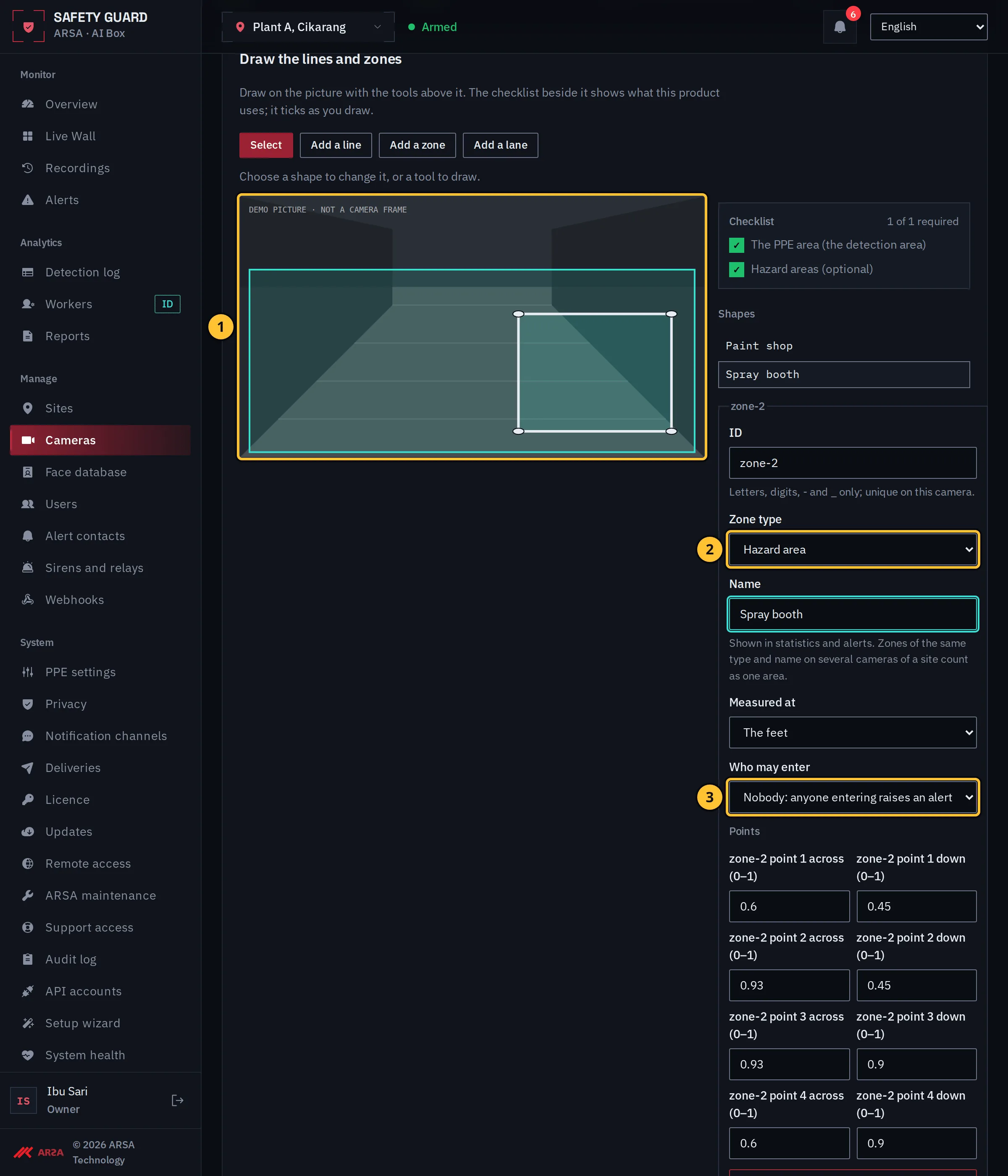
- Select Add a zone again and click the corners of the dangerous area, for example a spray booth or a crane’s swing area. Select Finish the shape.
- Set the zone type to Hazard area and give it a name.
- Who may enter is Nobody at first: anyone entering raises a Hazard area entered alert.
Step 3: Let Only Authorised Workers In
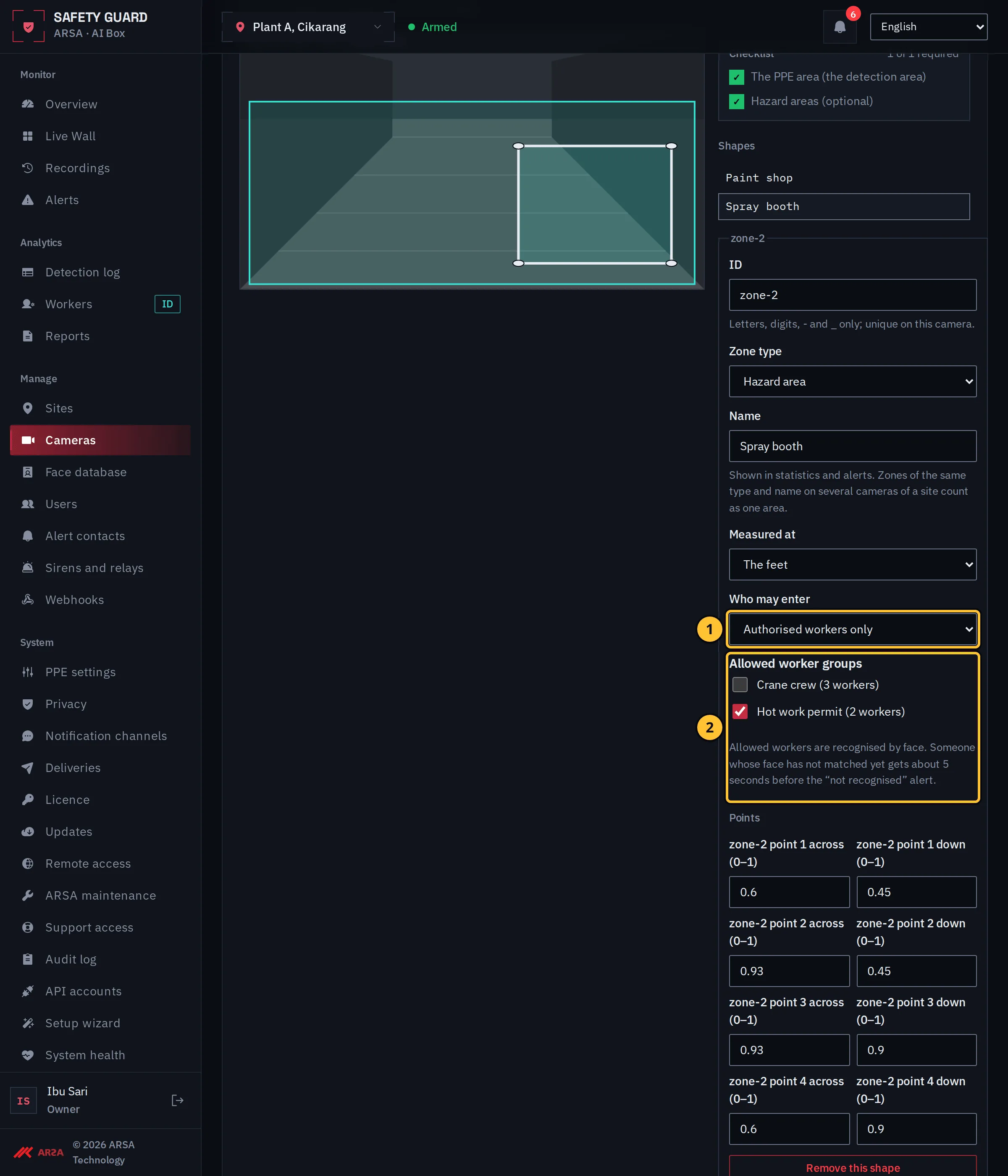
Demo data.
- Set Who may enter to Authorised workers only.
- Tick the worker groups allowed in. The owner makes the groups in the face database.
Authorised workers are recognised by their face, so this needs face recognition on the camera: the owner turns on worker accountability under System, Privacy, with the workers’ consent. Until then nobody is recognised, so everyone in the area raises the alert. Someone whose face has not matched yet gets about 5 seconds before the Not recognised alert.
Step 4: Check The Checklist And Save
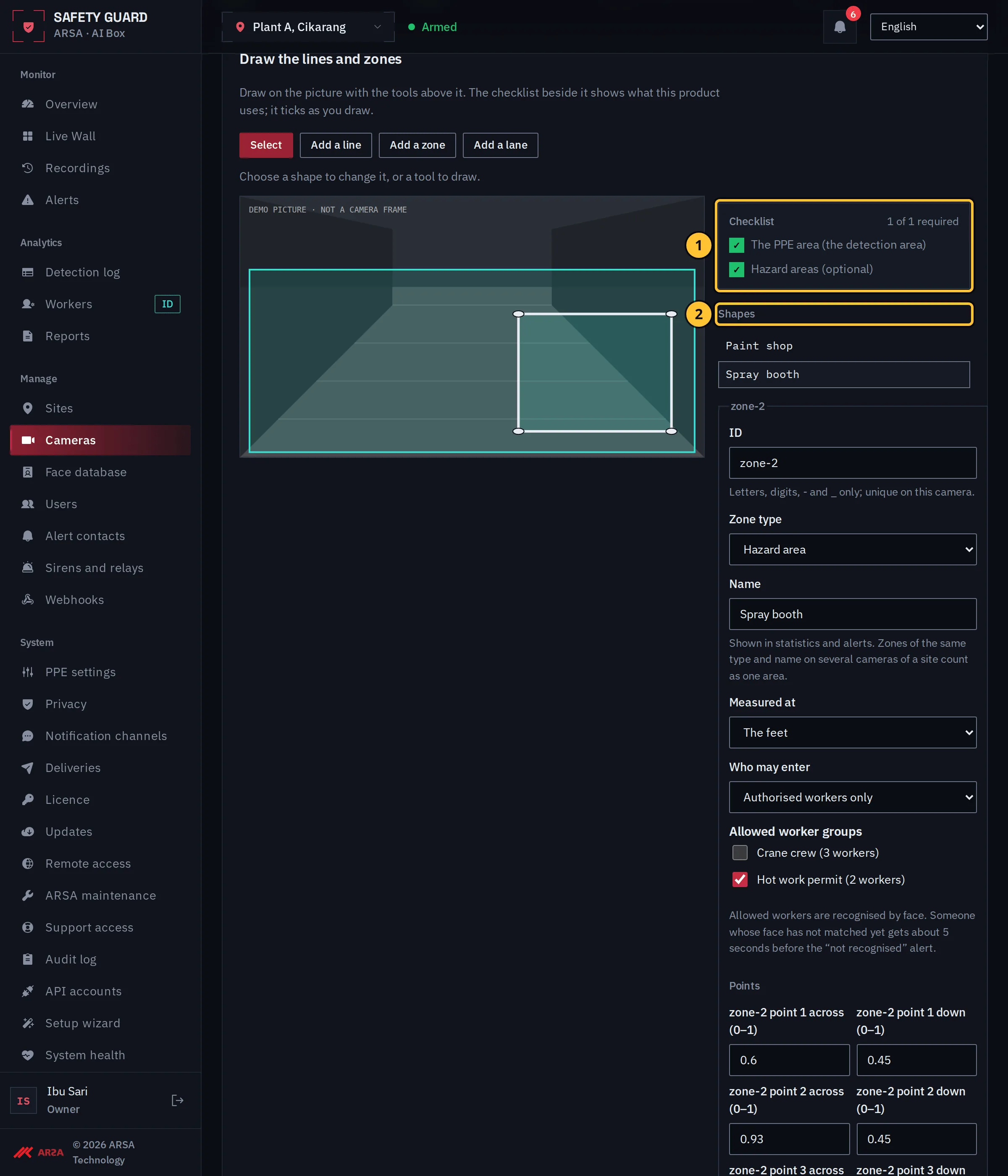
- Both items of the checklist are ticked.
- The shapes list names each zone; select one to change it.
Then select Next: review and Save the camera. The camera checks PPE in the new areas at once.
Watch The Drawing
Transcript of the drawing clip
Transcript of the clip “Draw the PPE Area and Hazard Areas” (silent, about 30 seconds, demo data).
- On the drawing step of a new camera the installer selects Add a zone, clicks four corners around the work floor, selects Finish the shape, sets the zone type to PPE area and names it “Paint shop”. The person is measured at the feet.
- The installer adds a second zone over the spray booth, sets its type to Hazard area and names it “Spray booth”.
- Who may enter is changed from Nobody to Authorised workers only, and the worker group “Hot work permit” is ticked.
- The checklist shows both items ticked. The installer selects Next: review and Save the camera.
1.0.0. Updated 2026-11-06