
Docs / AI Box And Video Analytics Software / Alerts: The Inbox, Acknowledging, Sirens And Relays
Alerts: The Inbox, Acknowledging, Sirens And Relays
See the AI Box's alerts in the inbox, acknowledge them with a note, learn what each product's alerts mean, and let alerts switch sirens and relays.
When a camera sees something that needs attention, the box raises an alert. It appears in the dashboard’s inbox, is sent to the alert contacts on their channels, and can switch on a siren, a light or a relay. Repeats of the same alert on the same camera are counted on one alert, so the inbox stays readable.
What The Alerts Mean
| Product | Alert | When it is raised |
|---|---|---|
| Basic Safety Guard | Missing PPE | A worker in a PPE area is not wearing a required item |
| Basic Safety Guard | Hazard area entered | Someone enters a hazard area where nobody may enter |
| Basic Safety Guard | Not recognised in an authorised-only area | Someone whose face is not recognised enters an area for authorised workers only |
| Basic Safety Guard | Worker not allowed in an authorised-only area | A recognised worker outside the allowed groups enters such an area |
| Traffic Monitor | Speeding | A vehicle is faster than its lane’s limit |
| Traffic Monitor | Wrong-way driver | A vehicle drives against its lane’s direction |
| Traffic Monitor | Stopped vehicle | A vehicle stands too long in a no-stopping zone |
| Traffic Monitor | Congestion | A lane stays full and slow for a while |
| Traffic Monitor | Watchlist plate seen | A plate on the watchlist is read |
| Smart Retail Counter | Long queue | More people wait in a queue zone than its alert length |
| Smart Retail Counter | Store over capacity | More shoppers are inside than the store’s limit |
| Smart Retail Counter | VIP arrived | A recognised VIP enters (only with staff and VIP recognition turned on) |
| DOOH Audience Meter | Crowd in front of a screen | More people are in a screen’s viewing area than the threshold |
Each alert has a severity: Information, Warning or Critical. The thresholds are in each product’s settings page.
Step 1: See That An Alert Is Open
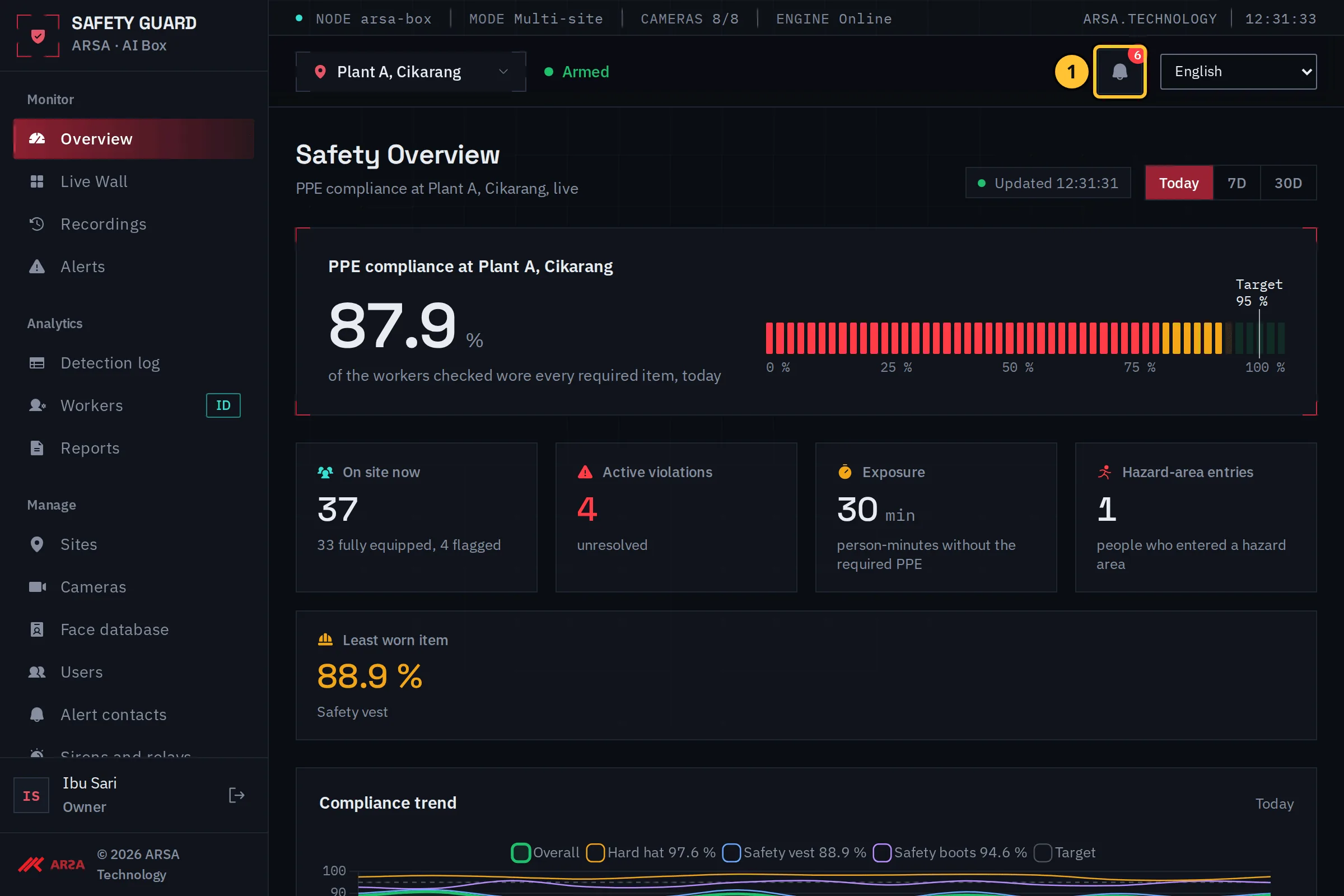
Demo data.
- The bell in the top bar shows how many alerts are open. Select it to open the inbox. The inbox is also in the menu under Monitor, Alerts.
Step 2: Read The Inbox
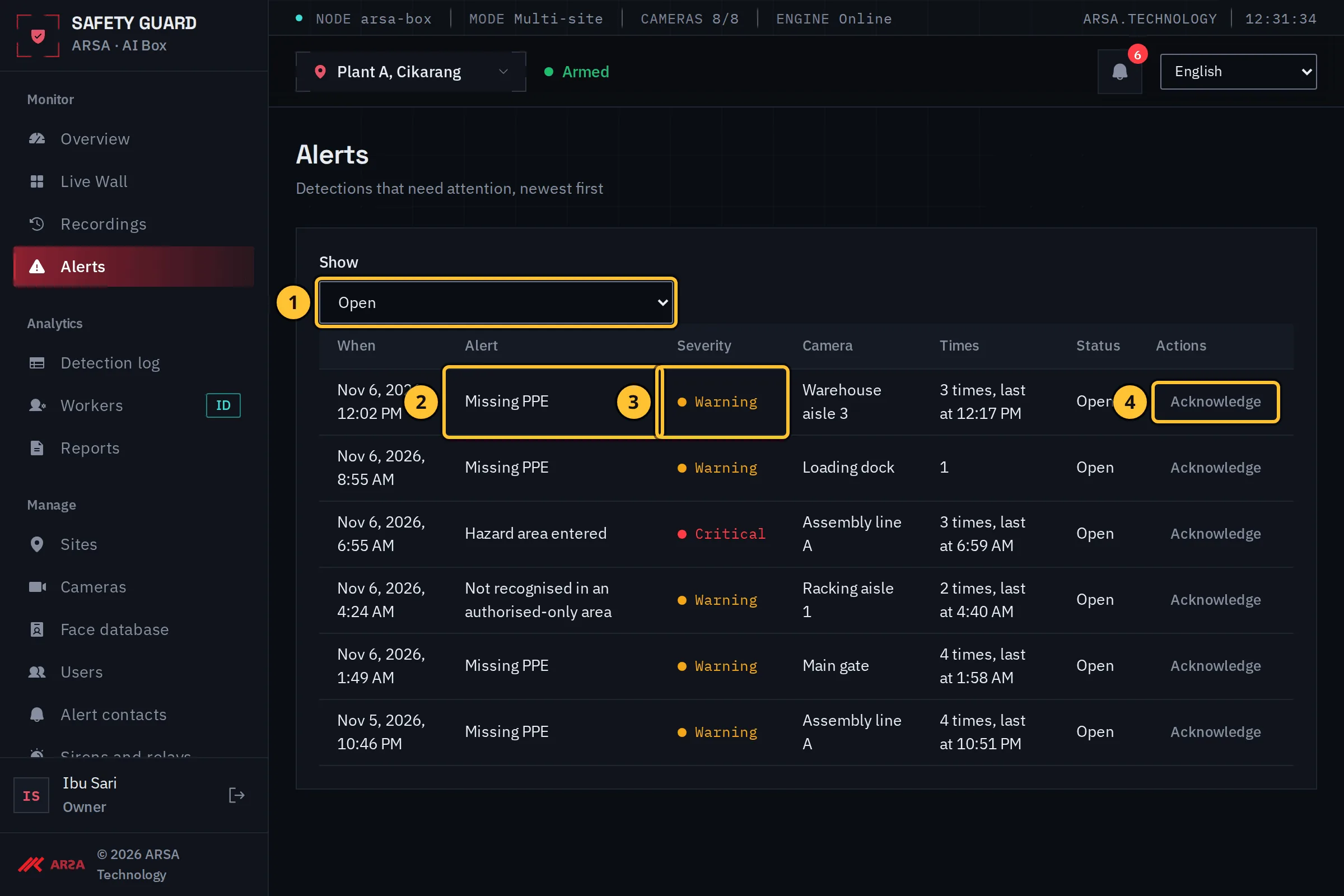
Demo data.
- Show chooses the open alerts, the acknowledged ones or all of them.
- The kind of alert, with the time it started, the camera, and how many times it repeated.
- The severity.
- Select Acknowledge once someone has dealt with it.
Step 3: Acknowledge An Alert
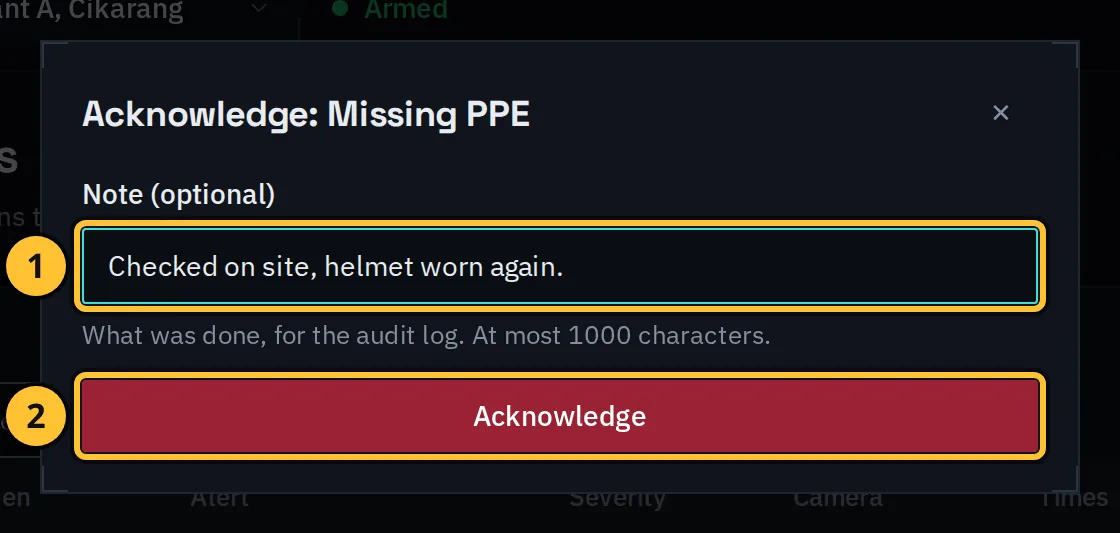
- Type a short note of what was done. It is kept in the audit log with your name.
- Select Acknowledge. The alert leaves the open list; a new event on the same camera raises a new alert.
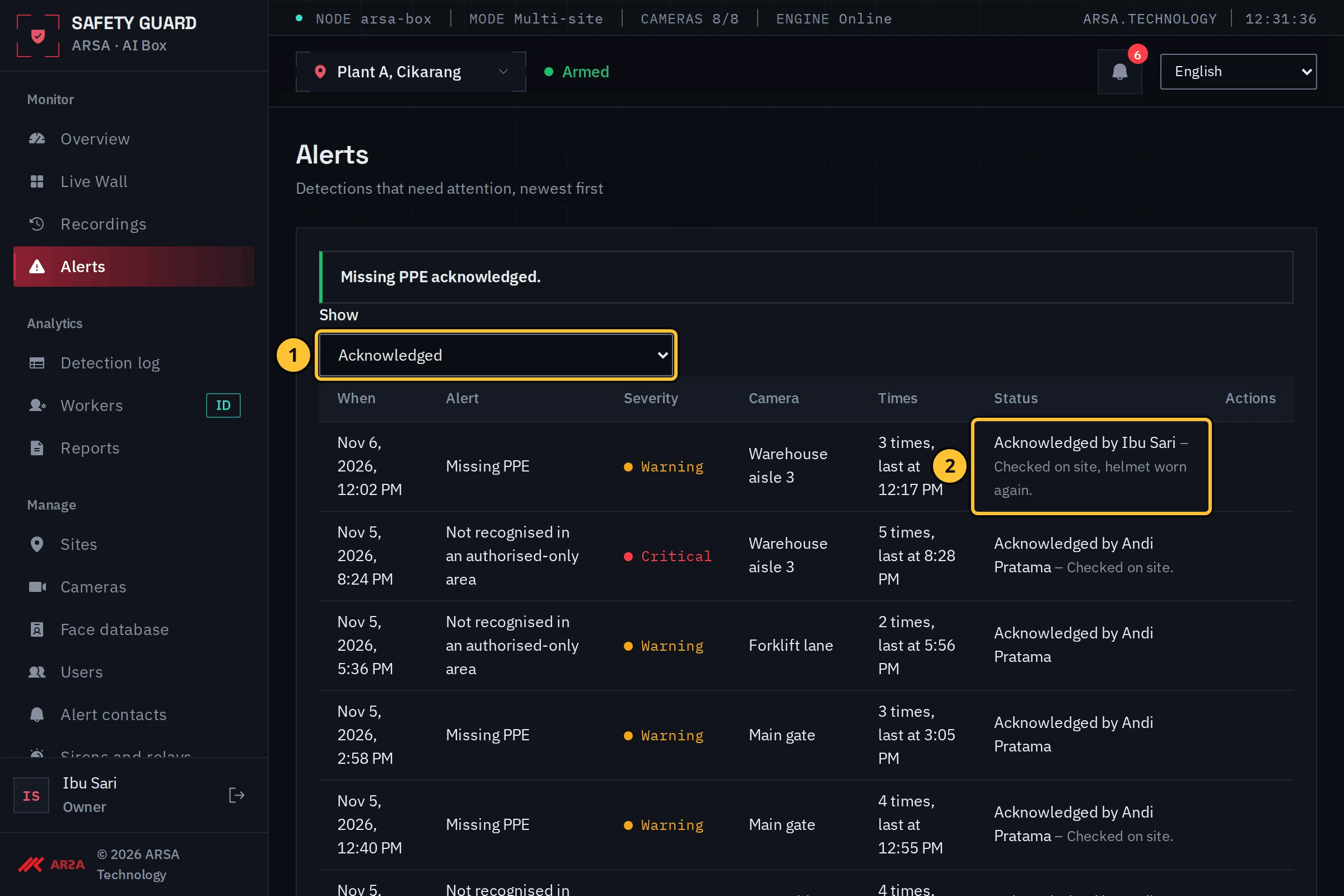
Demo data.
- Set Show to the acknowledged alerts to see them.
- Each one shows who acknowledged it and the note.
Step 4: Check Who Was Told
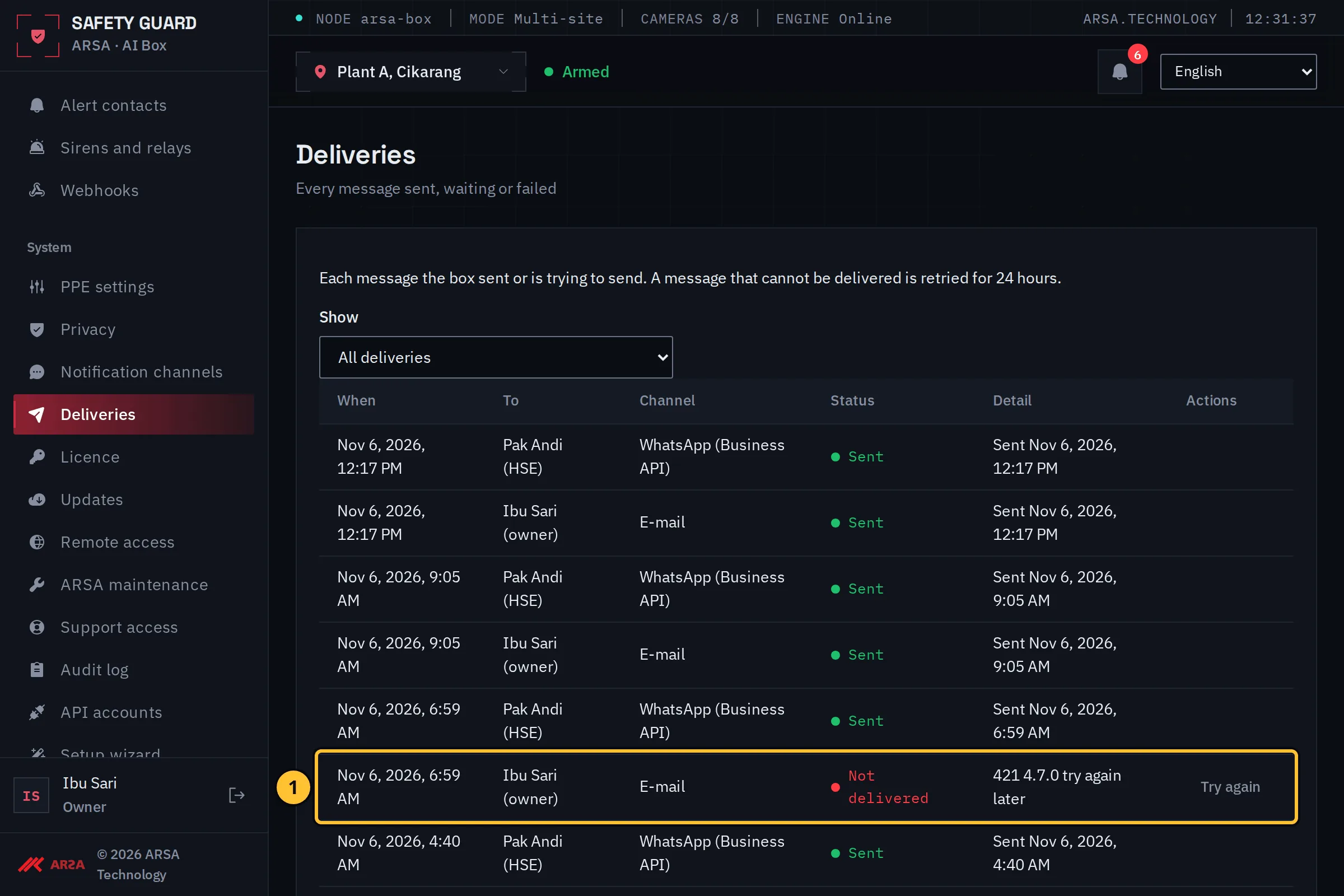
Open System, Deliveries to see every message the box sent, is still trying to send, or could not deliver.
Demo data.
- A message that was not delivered, with the reason the mail server or WhatsApp gave. The box retries a message for 24 hours; select Try again to send it once more.
Step 5: Let Alerts Switch A Siren Or A Relay
Alerts can switch outputs on: Ethernet relay boards (Modbus TCP), HTTP relays and smart sirens, and the alarm outputs of ONVIF cameras. Open Manage, Sirens and relays, and select Add output. You need the role Admin of the site.
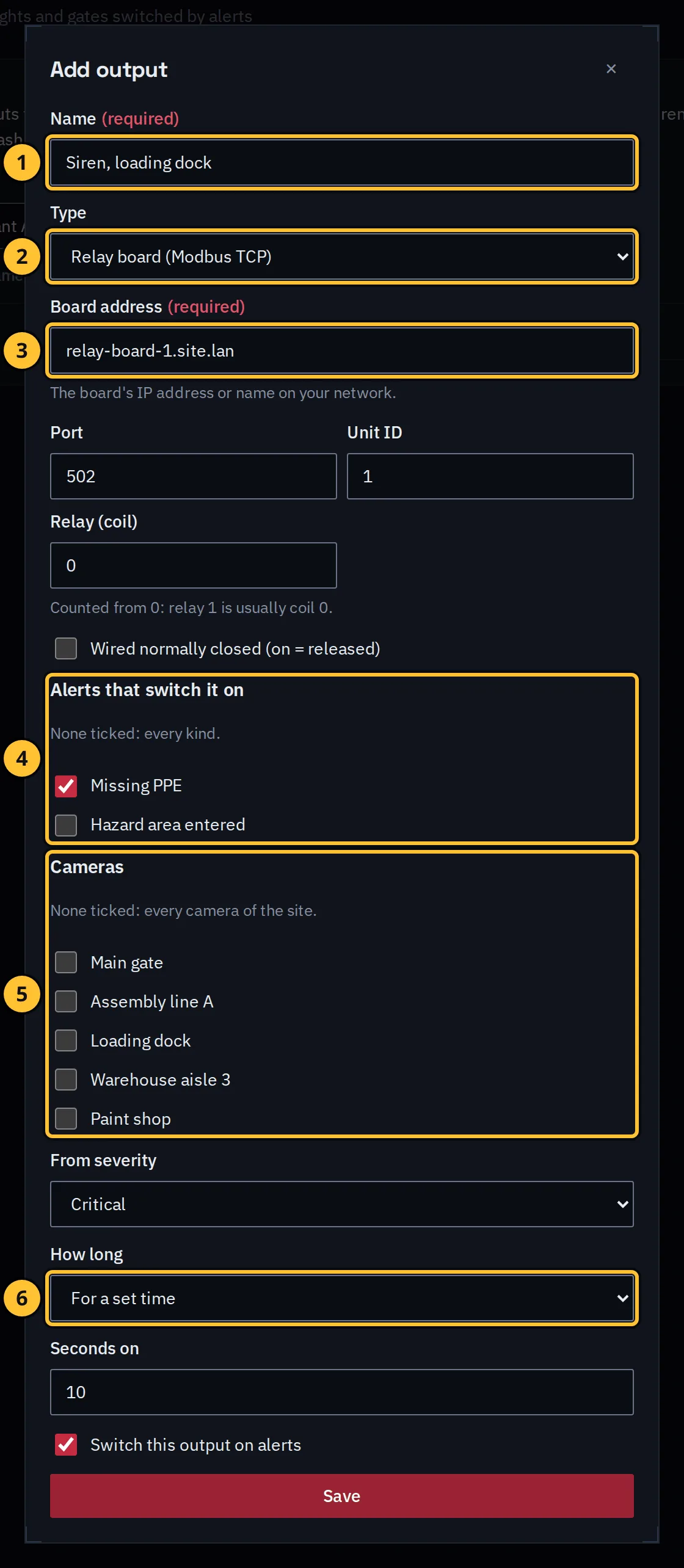
- Give the output a name, for example “Siren, loading dock”.
- Choose its type: a relay board (Modbus TCP), an HTTP relay or smart siren, or a camera alarm output (ONVIF).
- Type the board’s address or name on your network, then its port, unit ID and relay (coil). Tick Wired normally closed if the relay is wired that way.
- Tick the alerts that switch it on (none ticked: every kind).
- Tick the cameras (none ticked: every camera of the site). Below them, choose the lowest severity that switches it.
- Choose how long it stays on: a number of seconds, or until the alert is acknowledged.
Then select Save.
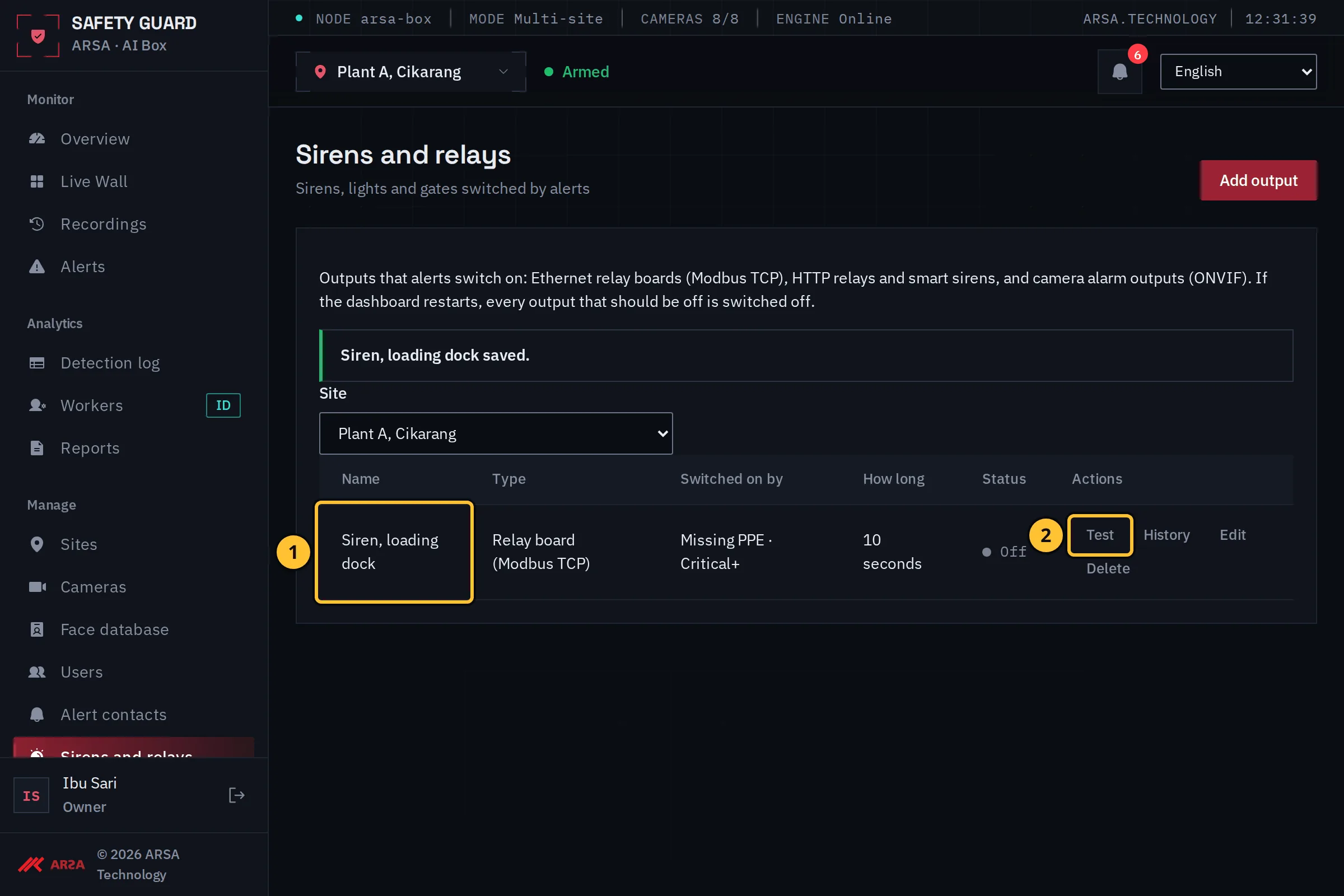
- The output is listed with what switches it and its state.
- Select Test to switch it on briefly and check the wiring. History shows when it was switched and why.
If the dashboard restarts, every output that should be off is switched off.
Watch: Acknowledging An Alert
Transcript of the acknowledge an alert clip
Transcript of the clip “Acknowledge an Alert” (silent, about 15 seconds, demo data).
- On the overview the operator selects the bell in the top bar, which shows the number of open alerts.
- The inbox lists the open alerts, newest first. The operator selects Acknowledge on the first one, “Missing PPE”.
- In the dialog the operator types the note “Checked on site, helmet worn again.” and selects Acknowledge.
- The alert leaves the list of open alerts, and the message “Missing PPE acknowledged.” is shown.
1.0.0. Updated 2026-11-06