
Inside The Face SDK Dashboard: How Compliance Teams Review A Flagged Identity Match
A face match that falls close to the threshold, or a watchlist hit on a live camera, should go to a person before anyone acts on it. This deep dive follows one flagged match through the ARSA Face SDK dashboard. It covers what the record holds, the order a reviewer should check it in, what the site has to provide for the evidence to be worth checking, and what the product leaves to your own process.
SEE IT WORKING
What A Flagged Match Looks Like On Screen
A flagged match is a recognition event. It names the person, the camera, the time and the similarity score, and the person's name is drawn next to their face in the dashboard's Live view. When that person belongs to an alert group, the dashboard marks them in red on every camera, and the event also goes into a stored history and out as a signed webhook if you have set one up.
The clip below is the dashboard's Live view running on demo data. Watch for the moment one tracked face turns red: that is an alert group member appearing, and the events list beside the cameras gains a row at the same moment. The reviewer starts from that row.
Nobody has decided anything yet at this stage. The SDK has measured how alike two faces are and compared the result with a threshold you chose. Whether the person on camera really is the person enrolled, and what should happen next, is the reviewer's call.
WHY A HUMAN LOOKS
Why Borderline Biometric Matches Go To A Reviewer
In the markets this article is written for, regulators treat a suggested face match as an estimate and expect a person to check it before it affects someone. The UK Information Commissioner's Office says in its facial recognition guidance that human intervention is commonly needed to judge whether a suggested match is correct, and that this input has to have a real influence on the outcome. Its biometric recognition guidance asks for meaningful human review wherever a system risks making solely automated decisions with legal or similarly significant effects. The UK GDPR rules on automated decisions were rewritten by the Data (Use and Access) Act 2025. The new framework keeps a right to obtain human review and to contest the decision, and it keeps tighter controls on decisions based on special category data, which covers most biometric data.
Multinationals that also operate in the EU face a stricter rule. For high-risk remote biometric identification systems, Article 14 of the EU AI Act requires the deployer to have a result verified and confirmed by at least two people with the competence, training and authority to do so before acting on it, with narrow exceptions for law enforcement and border uses (summary of Article 14). Check the official text before you rely on its exact wording.
All of these rules call for the same practical design. A flagged identity match needs a review step, someone who owns it, and a record showing what that person saw and decided.
HOW IT WORKS
The Order A Reviewer Works Through A Flagged Match
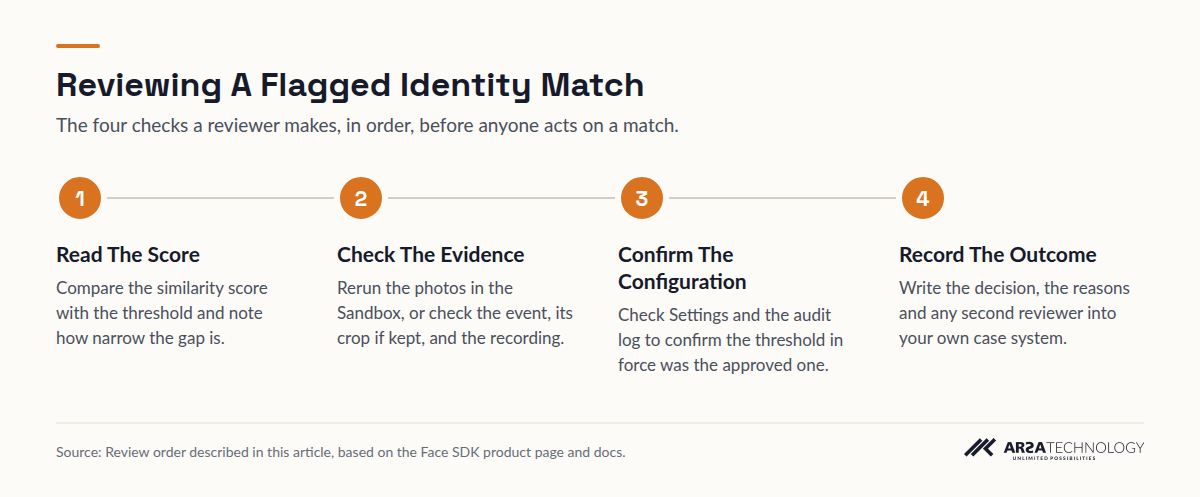
Work through a flagged match in four steps: read the decision and its threshold, check the evidence behind it, confirm the configuration that produced it, and record the outcome in your own case system. Each step uses a different screen of the dashboard.
Read As Text
- Read The Score Compare the similarity score with the threshold and note how narrow the gap is.
- Check The Evidence Rerun the photos in the Sandbox, or check the event, its crop if kept, and the recording.
- Confirm The Configuration Check Settings and the audit log to confirm the threshold in force was the approved one.
- Record The Outcome Write the decision, the reasons and any second reviewer into your own case system.
Step One: Read The Score Against The Threshold
The SDK returns every 1:1 decision as match, no_match or inconclusive, along with the similarity score and the threshold the score had to reach. A score just over the threshold carries more risk than one far above it, so the gap between the two numbers is the first thing a reviewer should note. Many teams send only the narrow band near the threshold to a reviewer and let clear results pass. That band is a policy your team sets. The SDK does not set it for you.
For 1:N identification, the threshold rises as more people are enrolled, because every search compares the face with everyone in the gallery. The answer shows the threshold used and the gallery size. A reviewer comparing two flags from different months should check both figures, since a larger gallery means a stricter line.
Step Two: Check The Evidence
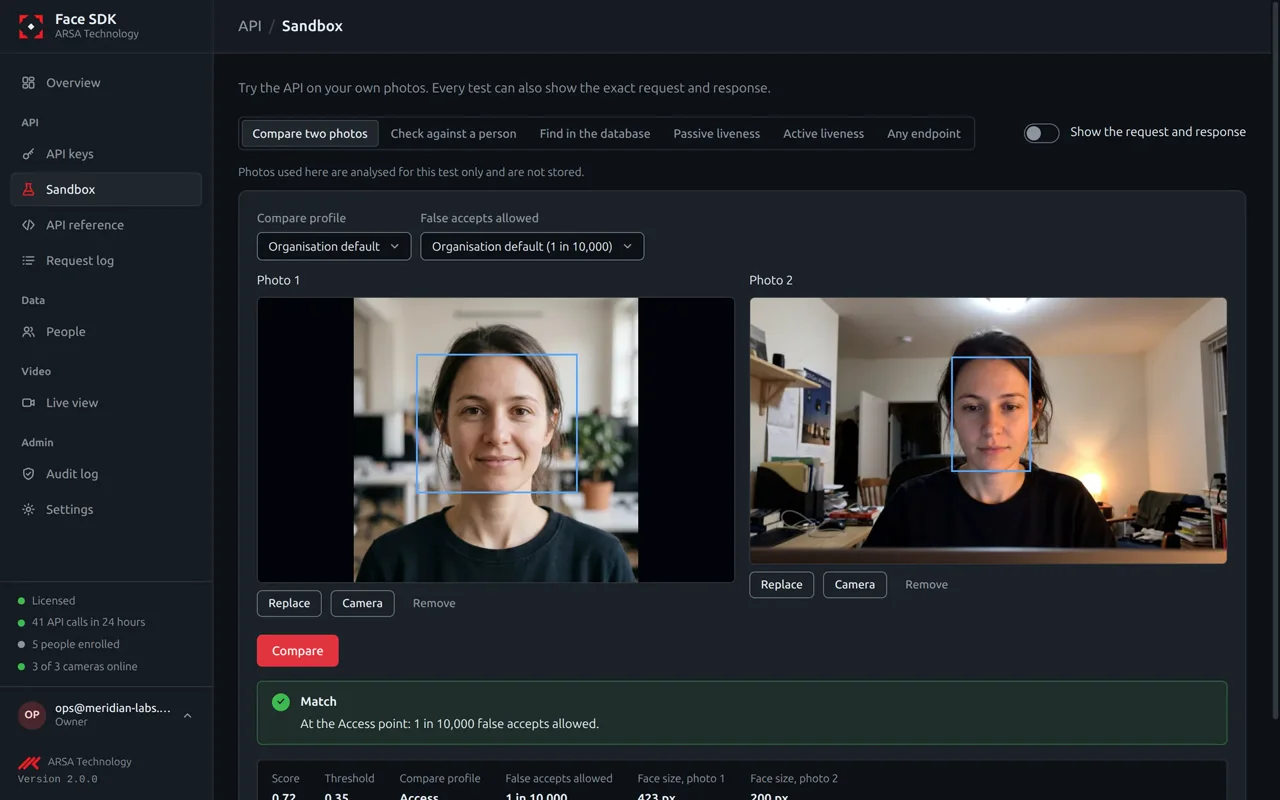
The evidence a reviewer can see depends on where the match came from. For an onboarding check, your own application holds the ID photo and the selfie it sent, because the SDK analyses photos in memory and then discards them. The reviewer can load the same two photos into the dashboard's Sandbox and run the comparison again, which shows the raw request, the answer, the score and the threshold.
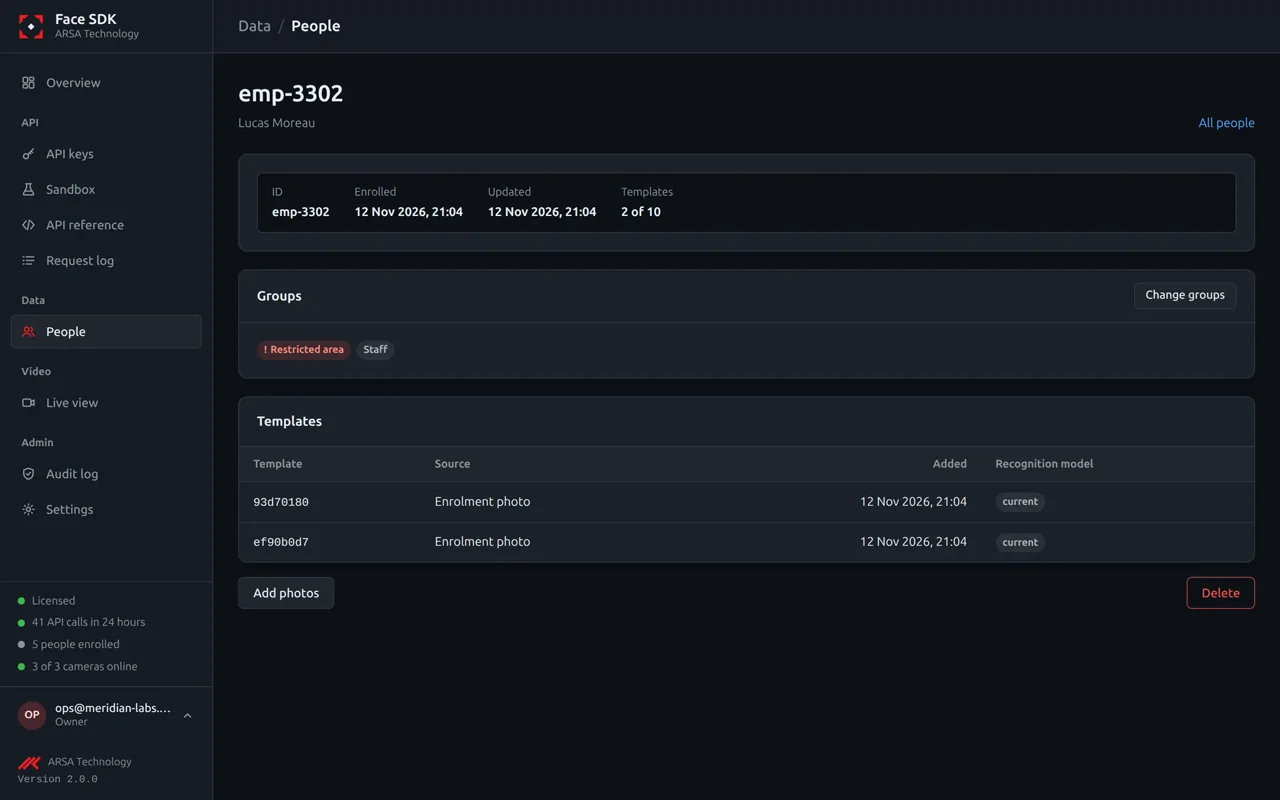
For a camera event, plan for this before go-live. By default the SDK keeps no face crops. An administrator can turn them on, after accepting a notice, and the crops are then stored encrypted. Without crops, the reviewer has the event itself (person ID, score, camera and time) and whatever your recording system kept for that camera at that moment. The person's page in the dashboard brings together their groups and recent events, so the reviewer can tell whether this flag is a one-off or part of a pattern.
Step Three: Confirm The Configuration That Produced It
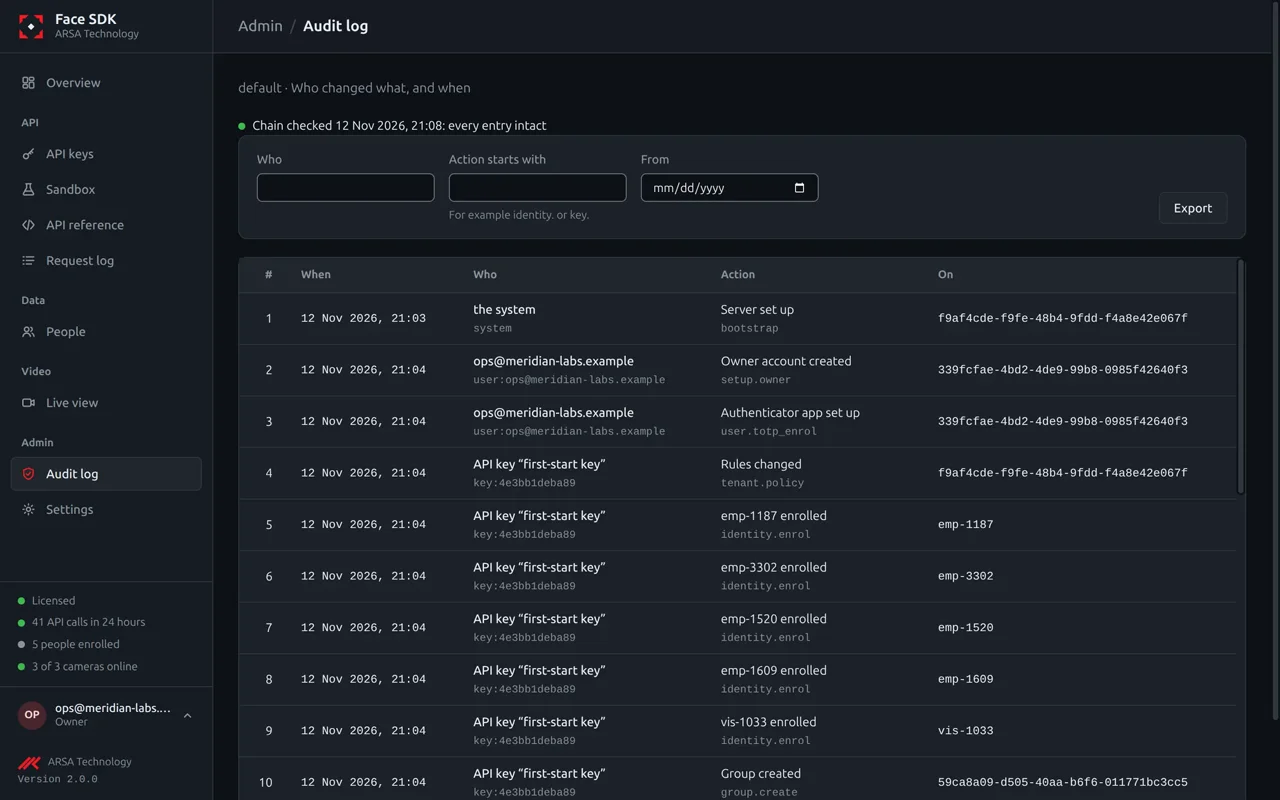
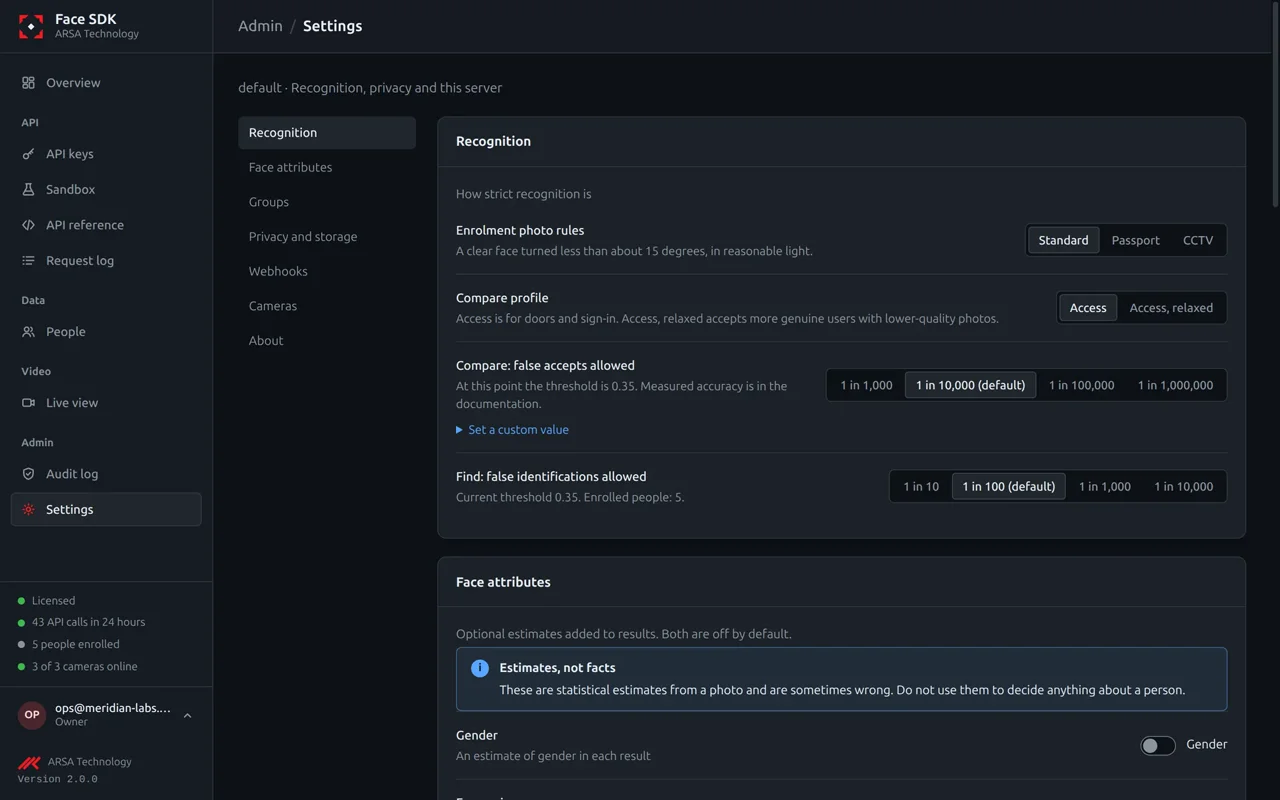
A match depends on the threshold it was held to, so the reviewer also needs to know whether anyone changed that threshold recently. The Settings screen shows the organisation's photo rules, its compare profile and the false accept rate it allows. The default for verification is 1 in 10,000. The audit log records who changed what and when, in a hash chain the dashboard can check, so a reviewer can confirm that the threshold in force at the time of the event was the approved one.
Step Four: Record The Outcome Where Your Auditors Will Look
The product page describes no case queue or reviewer sign-off inside the dashboard, so record the reviewer's decision, their reasons and any second reviewer in your own case management or GRC system, keyed to the event. If you need that inside the dashboard, ask ARSA. Keep retention in mind as well. Recognition events are kept for 90 days by default, the request log for 30 days and the audit log for 365 days, and each period can be changed. If your record-keeping rules require more than 90 days, copy what you need into your case file within that window, or lengthen the event retention.
WHAT THE REVIEWER SEES
Three Things On Every Flag Worth Reading
Three fields on a flag decide how much scrutiny it deserves. A reviewer should read them before forming a view.
The Gap To The Threshold
How far the similarity sits above the threshold. A small gap means the decision would change with a slightly stricter setting, and those are the flags where a second look matters most.
The Operating Point
The false accept rate or identification rate the threshold was set for, and for 1:N the gallery size. A looser identification rate finds more people and names more strangers wrongly, which the threshold guide in the docs says plainly.
The Photo Quality Reason
A photo the SDK cannot use comes back with a plain reason such as head turned, too dark or face too small. A liveness check with any failed frame returns inconclusive, never live. Neither result counts as a match, and neither should be handled as one.
SITE NEEDS
What The Site Needs For A Match Worth Reviewing
A reviewer can only judge a match as well as the image allows. For watchlist matching on live cameras, ARSA's camera standard ARSA-CVS-001, published on the camera and site requirements page, asks for far more than most other analytics need.
| Requirement | 1:N Watchlist Match | Liveness Frames (Onboarding) |
|---|---|---|
| Pixel density at the face | 533 PPM | One face of at least 64 pixels per frame |
| Camera tilt below horizontal | Optimal 5 to 15 degrees, maximum 15 | Face turned at most 25 degrees |
| Light at the target | 100 lux minimum | Large, evenly lit face |
| Reach, 60 degree lens | 3.1 m at 2 MP, 4.2 m at 4 MP | User facing the device camera |
| Camera floor | 2 MP minimum, 4 MP recommended, 15 fps | The device's real camera |
The SDK analyses each camera at 5 to 15 frames a second and detects faces from 32 pixels. Detecting a face takes far fewer pixels than matching it reliably against a watchlist. A camera that sees faces at 4 m with a 2 MP sensor will produce events, but at that distance it falls short of the 533 PPM the standard asks for, and its flags will be harder to review. Steep angles cause the same problem: above 15 degrees of tilt, a watchlist camera sees more forehead than face. If a camera position keeps producing borderline flags, the lens and field of view visualiser shows whether a narrower lens or a lower mount would fix it.
LIMITS
Where The Product Stops And Your Process Starts
The SDK measures and reports. It does not decide what happens to a person, and some of its errors are expected at any setting. ARSA's published benchmarks put numbers on that. With the server model at 1 false match in 10,000, 93.24% of genuine pairs are accepted on the VGGFace2 dataset, so roughly 1 in 15 legitimate attempts is refused. The light model accepts 85.66% at the same rate, roughly 1 in 7. For 1:N identification against a gallery of 1,000 people, 95.23% of enrolled people were identified correctly while 1% of strangers were wrongly named. Pose is a known weak point: across poses on the CPLFW benchmark the server model scores 94.83%. All of these figures come from public datasets on the benchmarks page. Your own cameras and lighting will give your own results, which is why the docs suggest testing with your own photos in the Sandbox.
On spoofing, passive and active liveness check for printed photos and screens replayed to the camera, and the SDK is not designed to stop 3D masks. Video injected into the stream without a camera is a different attack, handled by ARSA Verify, which is a separate offer. The active liveness challenge guide explains how a random challenge works. A reviewer should treat liveness as one input to the decision and never as proof of identity on its own.
Some duties stay with you. The SDK runs on your own Linux server and sends ARSA no photos, templates, names or recognition results. That makes you the party responsible for telling people that face recognition is in use and for having a lawful basis to process their faces. Deleting a person removes their templates and crops at once. Their ID remains in older events and audit entries until those retention periods end, and your subject access process should account for that.
ARSA delivers the Face SDK outside Indonesia. Where visa conditions prevent ARSA engineers from travelling, a qualified local partner installs it under ARSA supervision.
FAQ
Questions About Reviewing Face Matches
Does The Face SDK Decide Whether A Flagged Person Is Who The Match Says?
No. It reports a similarity score, the threshold that score was held to and a decision of match, no_match or inconclusive, and a person decides what happens next. Regulators such as the UK ICO describe a suggested match as an estimate that needs human review before it has a significant effect on someone.
What Is The Difference Between Passive And Active Liveness For Onboarding Review?
Passive liveness checks one to five frames for a printed photo or a replayed screen, with no action from the user. Active liveness adds a short random challenge and a signed result. For a reviewer, an inconclusive liveness answer means the frames could not be judged. It is never a pass, so the user should be asked to try again.
How Do We Keep Face Recognition Review Compliant With Privacy Rules?
Have a named reviewer for borderline and watchlist flags, record their decision in your own case system, and set retention to match your record-keeping duties. Because the SDK runs on your own server and sends ARSA no face data, you control where the evidence lives. You also carry the duty to give notice and to have a lawful basis.
Can A Reviewer See The Face That Triggered A Camera Alert?
Only if face crops are turned on, or if your recording system kept footage for that camera at that time. Crops are off by default, and an administrator turns them on after accepting a notice. Decide this before go-live, because a reviewer with no image can only judge the score and its context.
Which Threshold Should A Compliance Team Use For Identity Matching?
For payments and access decisions, the docs suggest 1 in 10,000 false accepts or stricter, with a retry when someone is refused. For finding people on cameras, a looser identification rate finds more people and names more strangers wrongly, so review those matches before acting on them. Every answer records the threshold used, which lets an auditor reconstruct the setting later.
How Long Does The Dashboard Keep The Records A Reviewer Needs?
Recognition events are kept for 90 days by default, the request log for 30 days and the audit log for 365 days, and each period can be changed. The request log never holds photos, request bodies or people's IDs, so keep the reviewer's notes in your own system.
Teams that want to see where this review step sits in a full deployment can read more about the on-premise face recognition and liveness SDK, and get in touch with ARSA with any questions about their own review process.